Distributor Guide · Guide 02
Initiate Purchase
Purchase is a core feature of the distribution business. Browse and select funds, choose SIP or lumpsum, set a mandate, and complete purchases within one unified platform. Gain transparency and reduce delays with automated workflows.
Part of the Transaction Execution feature on Rabbit Invest. See plans →
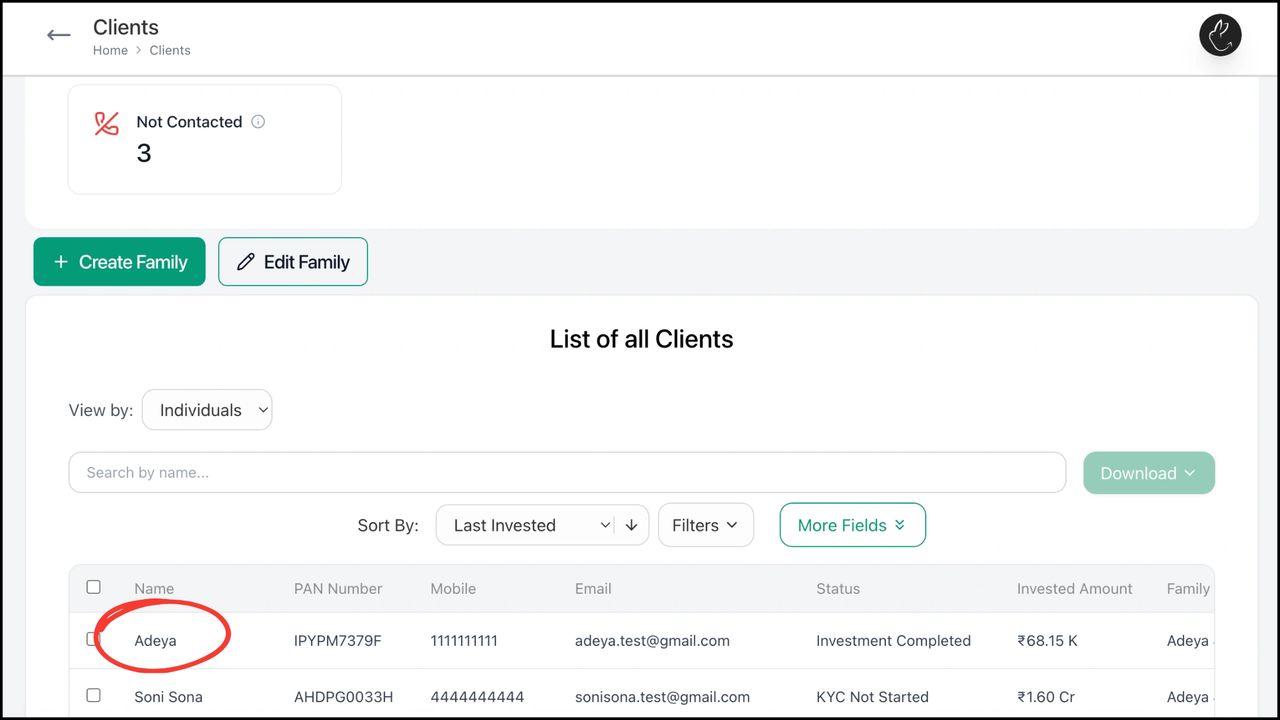
- •Go to the Clients tab on your dashboard. Under List of all Clients, search or click on the client you want to make a purchase for.
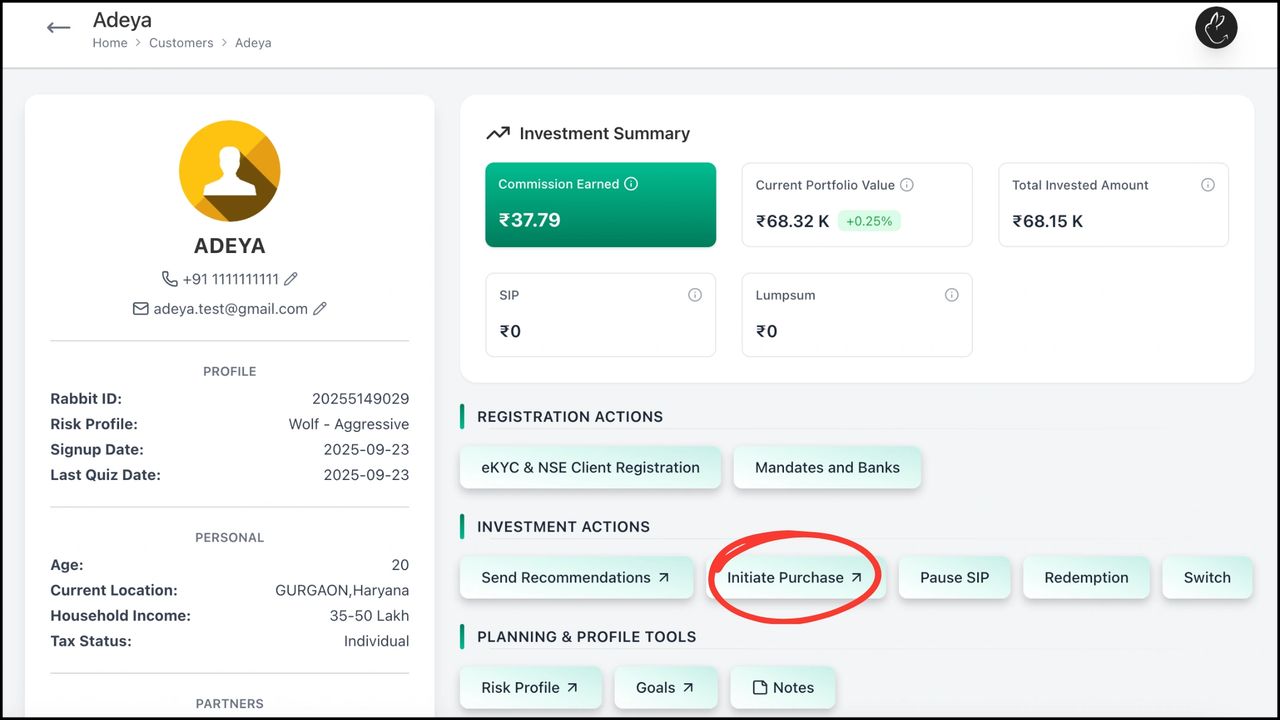
- •Click on 'Initiate Purchase'.
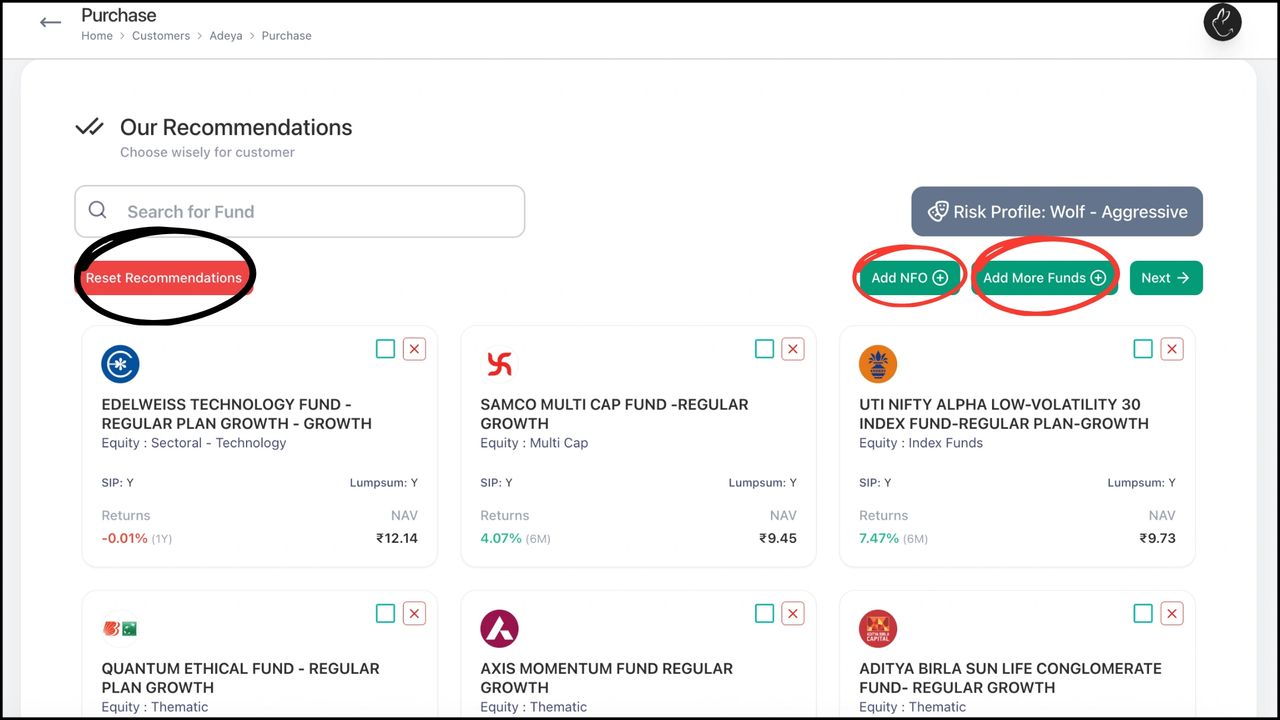
- •You are redirected to 'Our Recommendations'. Select the funds you want to purchase. You can choose from system-generated recommendations, search for a specific fund, click 'Add More Funds' to browse, or add NFOs via 'Add NFO'.
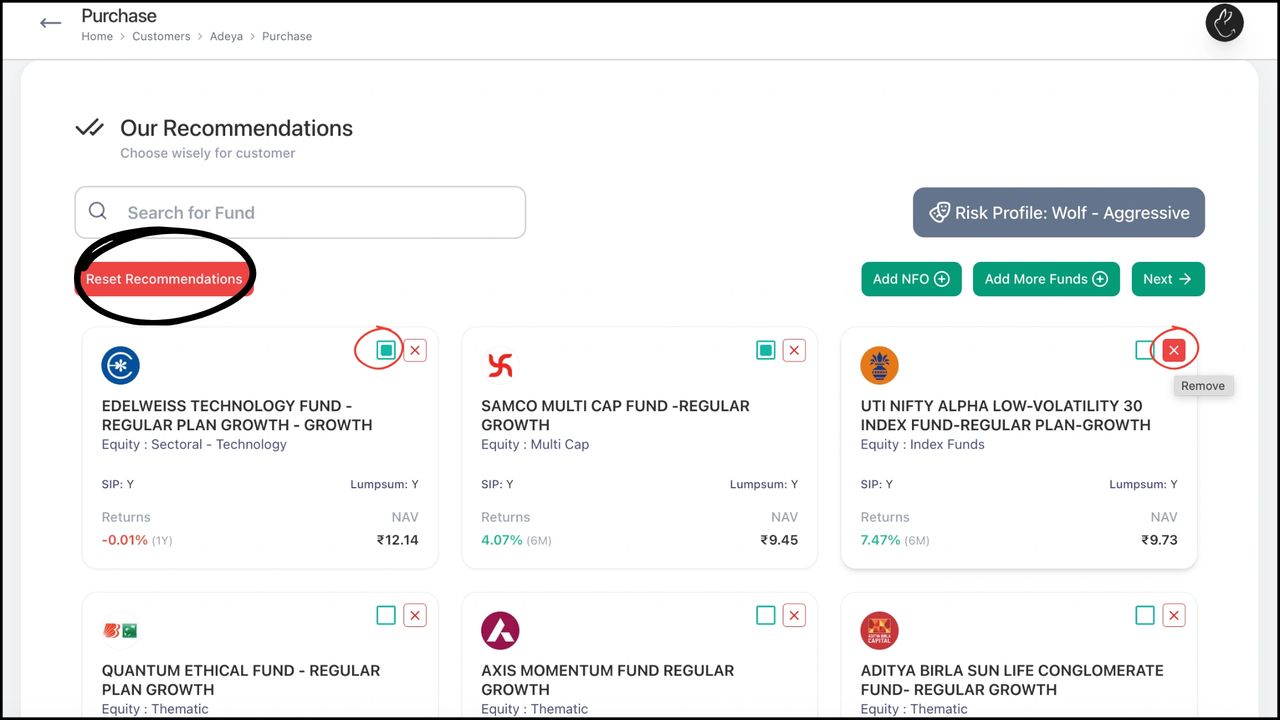
- •System recommendations: Select funds by checking the green box or remove via the red cross. Click 'Reset Recommendations' to refresh. These are unique to each client based on risk profile.
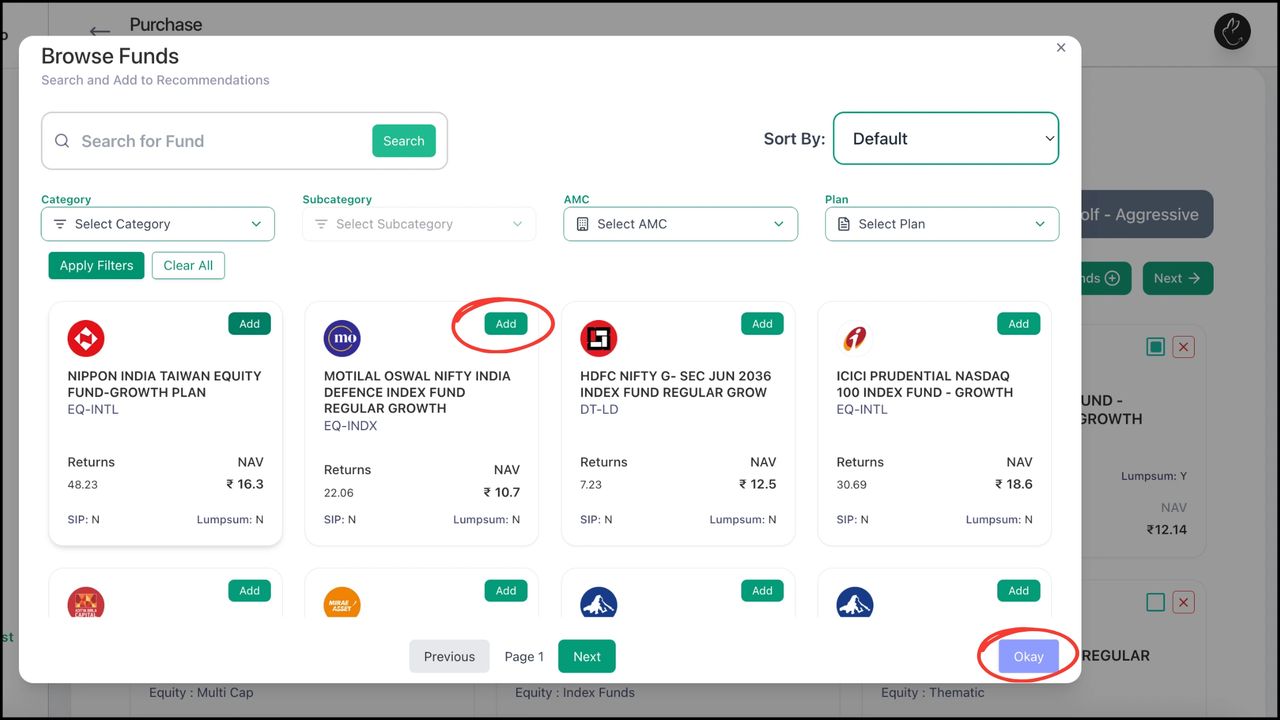
- •Add More Funds: A popup opens the Browse Funds panel. Search directly or use smart filters. Click 'Add' to select and press 'Okay'.
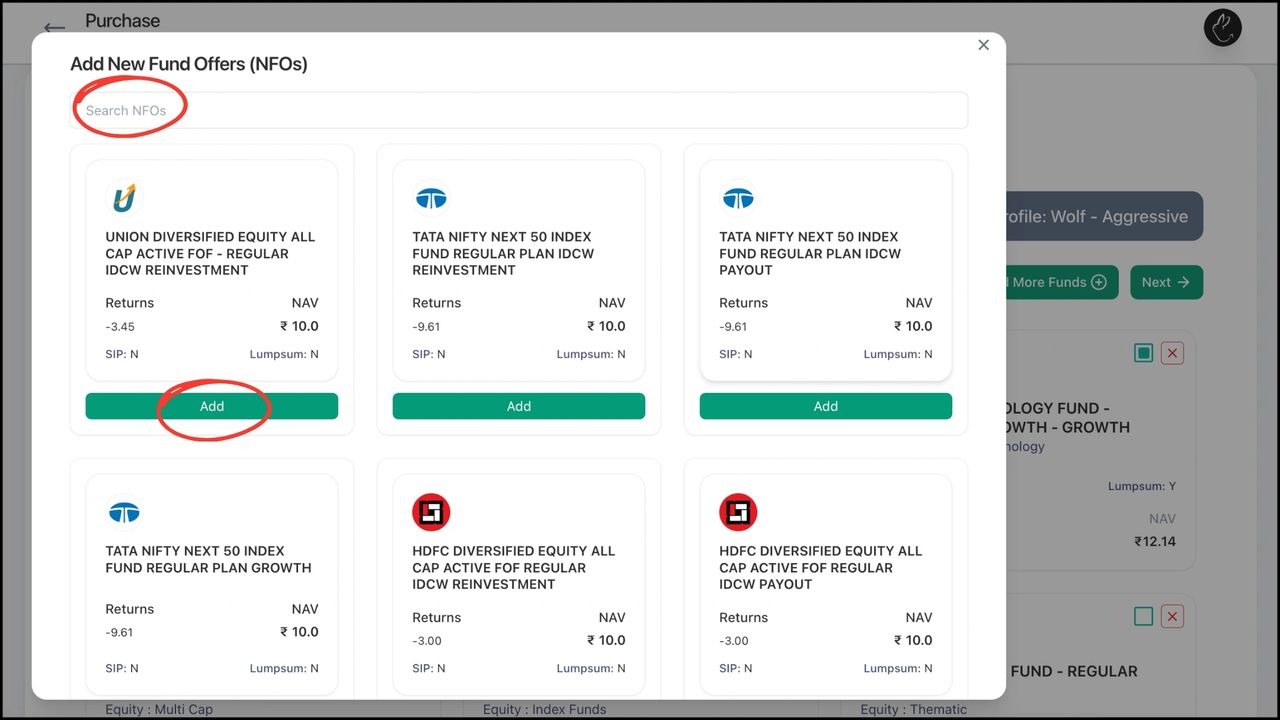
- •Add NFOs: Click 'Add NFOs', search for live NFOs or select from the list, then click 'Add'.
- •Click 'Next'. Choose SIP or One-time. Enter the total amount (auto-split equally) or set a custom amount per fund.
.png/:/rs=w:1280)
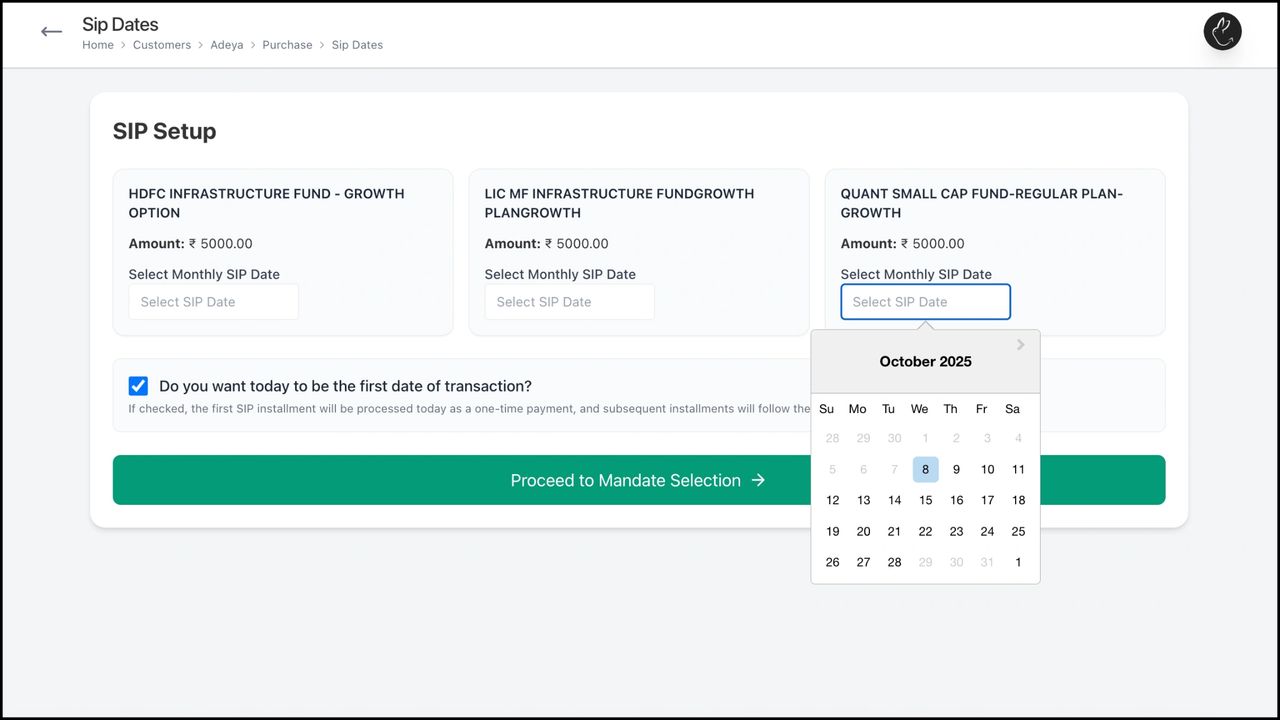
- •For SIP: Select the SIP date from the dropdown calendar for each fund. Click 'Proceed to Mandate Section'.
- •Select your ARN. For a new client, click 'Create a New Mandate'. For existing clients, click 'Proceed to Place Order'.
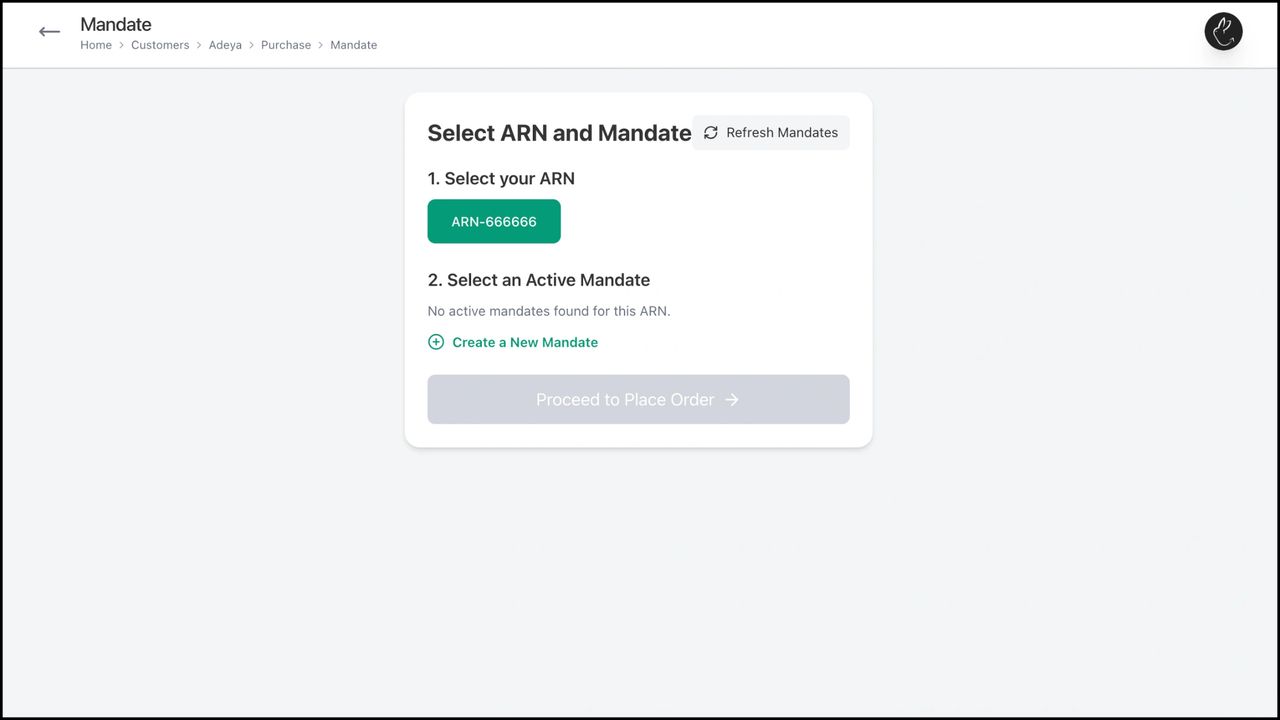
- •To create a new mandate, select the bank account, add the maximum mandate amount, click 'Create & Approve', then click 'Place Order'.
.png/:/rs=w:1280)
- •For One-time: Select the ARN, confirm details, and click 'Place Order & Proceed to Payment'.
.png/:/rs=w:1280)
Need hands-on help? Your RM is one message away.
Chat on WhatsApp